

August 31, 2026
Prep Faster: 5 Serato Smart Crates Working DJs Use

Smart Crates are rule-based folders that auto-populate by matching track metadata like BPM, key, genre, or date added, then update themselves as your library changes. Use them for anything that needs constant upkeep, such as recently added tracks, BPM ranges, or key groups, and let manual crates handle the tracks you actually load for a set. Done right, they cut prep time and keep your library current without touching a single file by hand.
TL;DR:
- Smart Crates rely heavily on accurate, consistent metadata tagging, especially for BPM, key, and genre, to function effectively.
- Using the “Match all” rule logic narrows the crate precisely, while “Match any” broadens it to include more tracks with less strict criteria.
- Importing pre-tagged packs from curated sources like DJ Vault ensures Smart Crates populate correctly without manual editing.
- Regularly auditing and splitting large crates improves browsing speed and prevents outdated or stale collections.
- Automatically updated or well-tagged libraries allow Smart Crates to reflect changes instantly, saving time during live performances.
Table of Contents
- How Do You Create a Smart Crate in Serato DJ Pro?
- What Rule Fields and Operators Actually Do
- Which Smart Crate Templates Are Worth Building First?
- How Do You Keep Metadata Clean Enough for Smart Crates to Work?
- Why Is My Smart Crate Empty (and Other Fixes)
- A Live-Gig Workflow Built Around Smart Crates
- Skip the Tagging, Start With Clean Crates
- Sources
How Do You Create a Smart Crate in Serato DJ Pro?
Building a Smart Crate takes about a minute once you know where to click. The process lives in the same panel as your regular crates, and Serato’s own setup guide walks through the mechanics in more depth if you want the full reference.
- Right-click anywhere in the crates panel and choose Add Smart Crate, then name it something you’ll actually recognize at 1 a.m. (skip “New Smart Crate 3”).
- Click Add Rule to open the first condition. Pick a field from the dropdown, an operator (Contains, Is, Does not contain, Is not), and a value.
- Stack more rules if needed, then choose Match all (every rule must be true) or Match any (a track qualifies if it hits just one rule).
- Check the Live Update box if you want the crate to refresh automatically as your library changes, or leave it unchecked to control refreshes manually.
- Save it. To edit later, right-click the crate and look for the edit option, which reopens the same rule builder.
Match all is what you want for narrow crates, like “House tracks between 122 and 126 BPM.” Match any is better for broad safety nets, like pulling anything tagged Genre “House” or Comment “Peak Time.” Mixing up which one you need is the most common reason a Smart Crate returns nothing.
What Rule Fields and Operators Actually Do
Serato lets you build rules from fields including BPM, Key, Genre, Date Added, Comment, Filename, Rating, and more, and the crate pulls tracks by scanning your library’s tags against whatever rule you set, according to Serato’s crate documentation. Here’s what the fields you’ll use most often actually mean in practice:
- BPM: Works with “Is” for an exact tempo or a range rule for a spread, like 120 to 128 for house.
- Key: Most useful in Camelot notation (8A, 9B) so you can build harmonic groupings fast.
- Genre: Depends entirely on how consistently you’ve tagged tracks, since a typo like “Hip-Hop” versus “Hip Hop” splits your crate in two.
- Comment: A flexible catch-all field, often used for edit type, energy level, or custom notes.
- Filename: Handy for catching “Clean,” “Radio Edit,” or “Instrumental” in the track name itself when the tag data is missing.
Operators change everything. “Contains” catches partial matches, so Genre Contains “House” grabs Deep House and Tech House alike. “Is” demands an exact match, which is stricter but avoids stray results. “Does not contain” and “Is not” are your exclusion tools, useful for filtering out explicit versions or dirty edits.
Pro Tip: Serato doesn’t have a dedicated release-year field for every rule builder version, so DJs commonly embed the year into the Comment or Grouping field (like “1998” or “Y2K”) and build a rule off that instead, a workaround Serato’s support docs confirm works reliably.
Which Smart Crate Templates Are Worth Building First?
You don’t need a dozen crates. You need a handful that solve real problems every time you open Serato. Here are five that cover most working DJs’ needs:
- Recently Added (Last 30 Days): Date Added is within the last 30 days. Swap the window to 14 or 7 days if you buy new packs weekly and want a tighter view.
- Clean Edits Only: Filename Contains “Clean” or Comment Contains “Clean,” set to Match any, so you can pull a family-friendly set on short notice.
- High Energy 128+: BPM greater than 128, useful for peak-time transitions without scrolling your whole library.
- Key Group 8A Neighbors: Key Is 8A, or expand to Match any across 8A, 9A, and 7A for harmonic mixing on the fly.
- Missing Metadata Audit: Genre Does not contain any real genre tag, or Key Is blank, which surfaces the tracks you forgot to tag before they embarrass you mid-set.
That last one matters more than DJs give it credit for. Every working DJ accumulates a pile of half-tagged files, and a Smart Crate built specifically to expose gaps turns a quarterly cleanup chore into something you catch weekly, five minutes at a time.
How Do You Keep Metadata Clean Enough for Smart Crates to Work?
Smart Crates are only as good as the tags behind them. A crate built on BPM and Key rules is worthless if half your library was imported without either field filled in, which is the single biggest reason DJs abandon Smart Crates after a few frustrating weeks.
A batch workflow fixes most of it:
- Run key detection (Serato’s built-in analyzer or a dedicated tool) on new imports before they touch a set list.
- Standardize genre spelling across your whole library, since “EDM” and “Edm” read as two different tags to a rule engine.
- Use Comment or Grouping consistently for anything Serato doesn’t have a native field for, like era or energy tier.
- Drag new imports into the All crate first, then check that your Smart Crates actually catch them before you rely on them live.
DJs who organize their crates by vibe and energy tier, tagging things like “70s Soul Classics” or numbered energy groups, do it precisely because clean, consistent tags are what make automated sorting trustworthy in the first place.
This is also where pre-tagged packs save real time. Importing a library where BPM, key, and genre are already filled in correctly means your Smart Crates populate the moment the files land in Serato, no analysis pass required. DJ Vault’s curated packs are built with that exact handoff in mind: key-labeled, genre-tagged, and ready to drop into the All crate.
Why Is My Smart Crate Empty (and Other Fixes)
An empty Smart Crate almost always means a rule mismatch, not a bug. Check these first:
- Rule logic: If you set Match all with three strict rules, one wrong value blanks the whole crate. Switch to Match any to test which rule is the problem.
- You can’t drag tracks in manually: Smart Crates only accept tracks that satisfy their rules, a design choice Serato confirms explicitly. Build a manual crate for your actual gig set list instead.
- Crates growing too large to browse fast: Split anything over roughly 200 to 300 tracks into subcrates by dragging one crate onto another, a threshold CadenceDJ’s organization guide recommends for keeping live browsing quick.
- Stale crates piling up: Audit monthly or right after big imports, and delete anything you haven’t opened in months.
Pro Tip: Color-code your Smart Crates differently from your manual gig crates. When you’re scanning the panel under club lighting with fifteen minutes to build a set, that visual split saves real seconds.
A Live-Gig Workflow Built Around Smart Crates
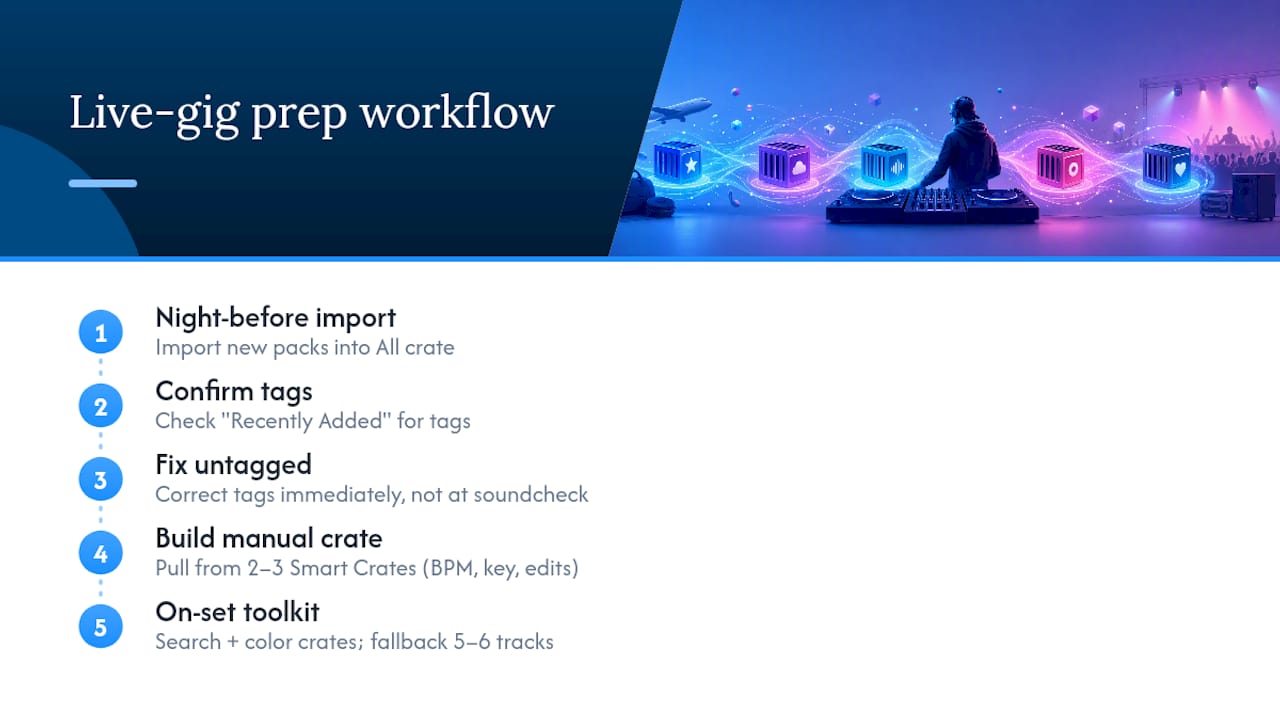
My routine starts the night before a gig, not the night of it. I import whatever new packs I bought that week straight into the All crate, then check my “Recently Added” Smart Crate to confirm everything landed with tags intact. If something shows up untagged, I fix it right then, not at soundcheck.
Before I leave for the venue, I pull from two or three Smart Crates (BPM range, key group, clean edits) into a single manual crate that becomes my actual gig list. That manual crate is the only thing I trust once I’m behind the decks. During the set itself, I lean on the search bar and color-coded crates for quick pivots, plus a small fallback crate of five or six tracks I know will never fail a room.
— DjVault
Skip the Tagging, Start With Clean Crates
DJ Vault gets your Smart Crates working the moment you import, not after a weekend of manual tagging. Every pack is key-labeled and genre-tagged before it ever touches your library, so BPM rules, key groups, and genre-based crates populate correctly on the first drag into your All crate.
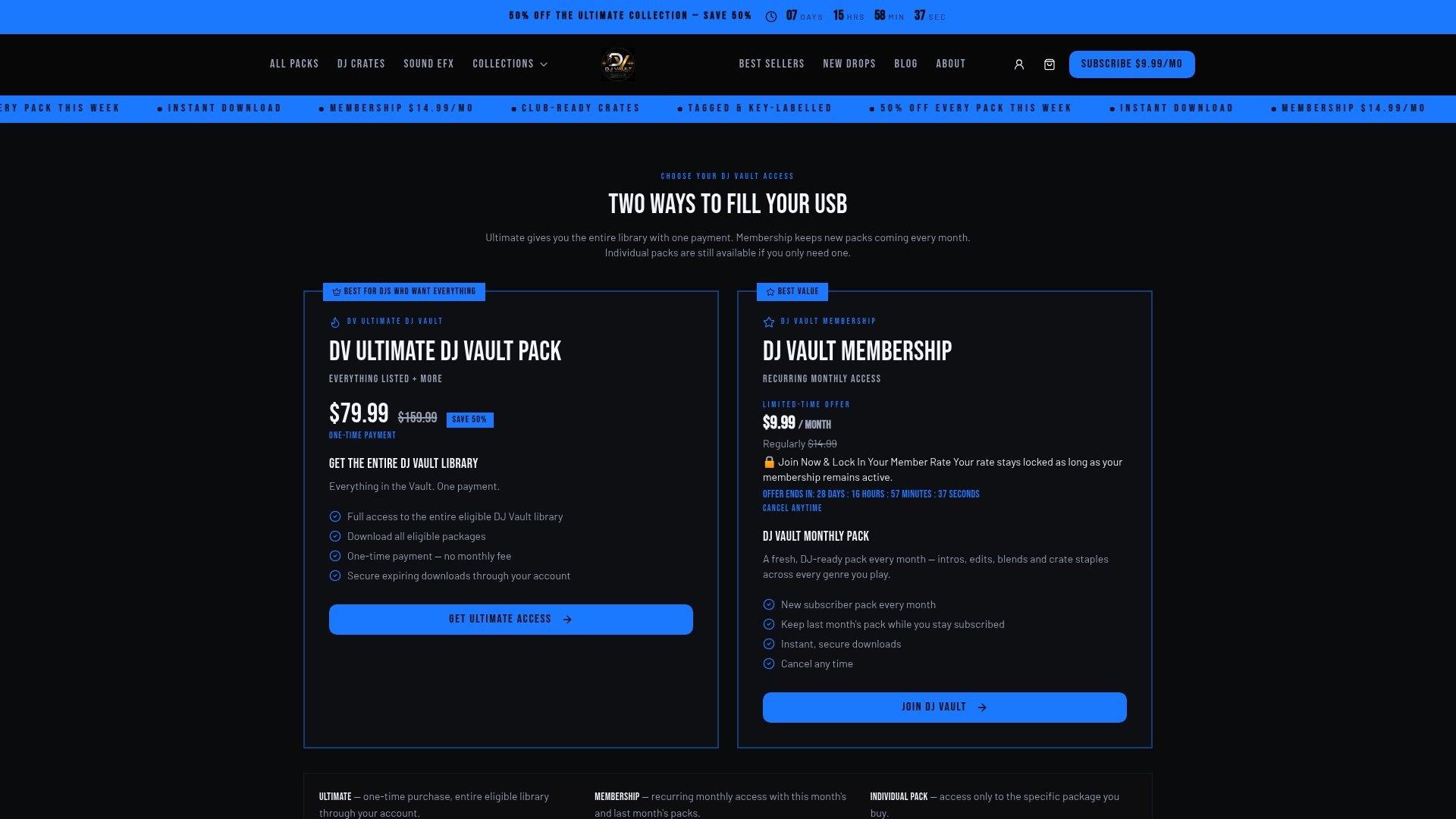
That matters most when you’re prepping fast: buy a pack, drop it in, and your existing Smart Crates absorb it automatically instead of sitting empty until you find time to fix metadata by hand. Whether you need a single genre-specific pack or ongoing monthly drops to keep “Recently Added” full, the setup stays the same. If you want a fast starting point, browse the PartyBreakz & Remixes pack and see how quickly it slots into a Smart Crate built around clean, ready-to-mix edits.
Sources
- Library Smart Crates – Serato Support
- How Serato DJs organize their crates - The Drop (Serato)
- Serato Crate Organization: A Workflow That Scales - CadenceDJ